Statements
Accessing Cardholder Statement:
-
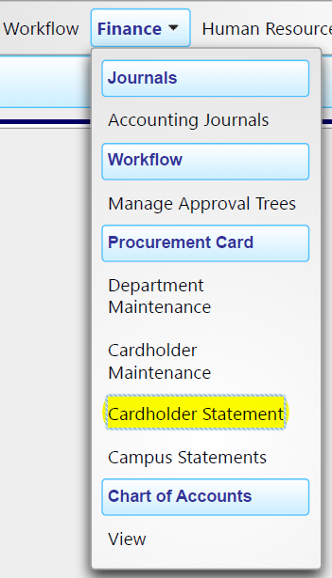
- Navigate to the Finance Drop-down Menu.
- Select "Cardholder Statement" under the Procurement Card heading.
Initial Setup:
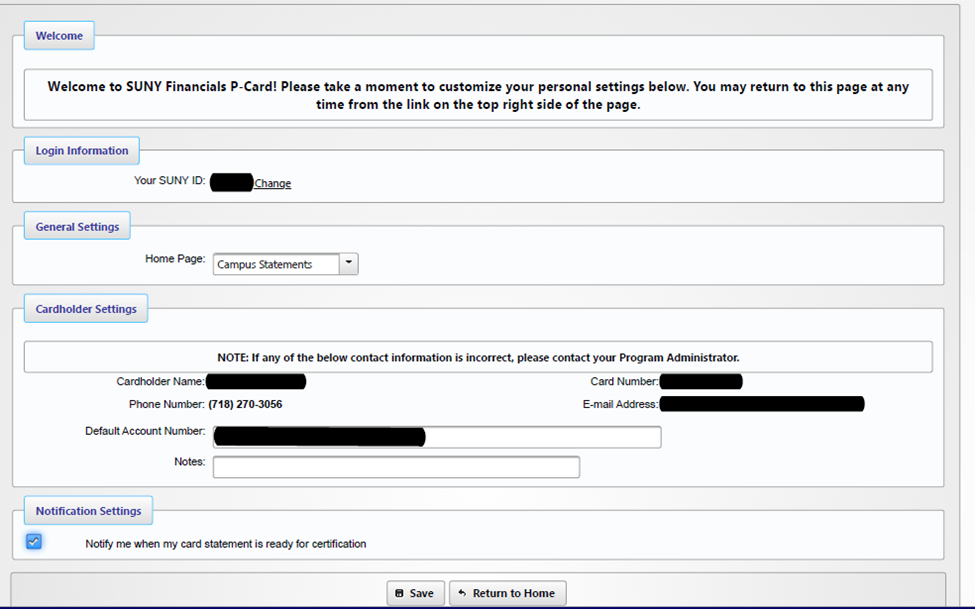
New cardholders will automatically access the Welcome/Settings page. Review account information and update the Default Account Number as needed. Select "Save" or "Return to Home" at the bottom of the page.
Settings Access:
- To access the Welcome/Settings page after initial setup, select "Settings" in the upper right corner of the screen.
Statement View:
- Select "Cardholder Statement" from the Finance menu.
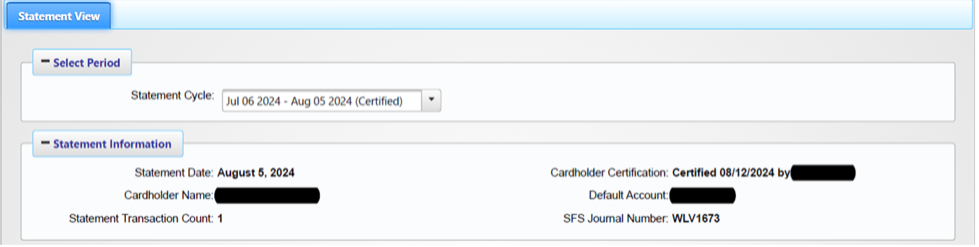
- The Statement view page displays all transaction details.
Statement Cycle:
- Access any available billing cycle through the Statement Cycle drop-down menu.
Statement Detail:
-
- Each statement displays:
- Current billing cycle information.
- Detailed transaction list.
- Transaction date (descending order).
- Transaction descriptions are derived from vendor Merchant Category Codes (MCC) and
are system-generated, permanent entries in the financial system.
- Upon identification of inaccurate transaction descriptions:
- Each statement displays:
-
-
-
- Review current Object Code assignment.
- Make necessary Object Code modifications.
- Document Object Code changes.
-
-